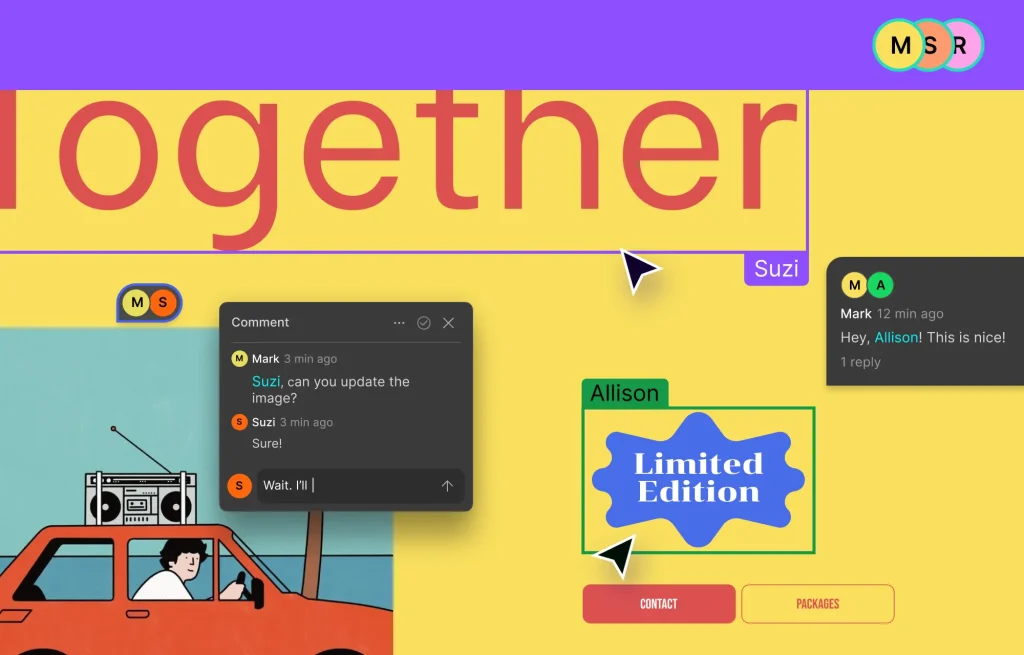
Droip’s Real-Time Collaboration allows multiple users to edit, design, and review a page simultaneously on the same canvas.
It provides:
Live multi-user editing with instant sync
Color-coded highlights to identify collaborators
In-canvas comments
Role-based access
This feature transforms team workflows, eliminating the need for back-and-forth logins or manual coordination.
Prerequisites
Droip’s Real-Time Collaboration works hand-in-hand with the Role Manager to ensure teams collaborate efficiently, without overlapping permissions or unwanted edits.
Full Edit Access: Users with full edit access can modify both design and content. This includes adjusting layouts, styling, and structural elements on the canvas.
Content-Only Access: Users with content-only access can only update content, but cannot alter the design or structure of the page.
This separation ensures designers, developers, and content editors can all collaborate live, each within their own scope.
Navigate to Pages > select the page you want to edit.
Click Edit with Droip.
Once inside the visual editor, you’ll see other collaborators online represented by avatars at the top of the canvas.
How it Works
All users with admin or edit permissions can build and design together in real time.
Every change syncs instantly across all users’ screens.
Active collaborators are indicated at the top with their avatar and color-coded highlights on the elements they’re editing.
In-Canvas Comments
Droip supports contextual commenting directly on the canvas. Learn more in the Comments Documentation.
Version Control & History
All edits are automatically saved in real time in a staging version. Previous versions of the page can also be accessed via the History Panel. Learn more in the Version History Documentation.
Every page in Droip is backed by built-in version control, so you can confidently iterate, update, and restore without ever losing your work.
Whether you’re experimenting with a new layout, adjusting content, or collaborating in a team, Droip keeps a record of every published state of your page — giving you complete control over your version history.
Where to Find Version History
To access your page’s version history:
Open any page in the Droip Editor.
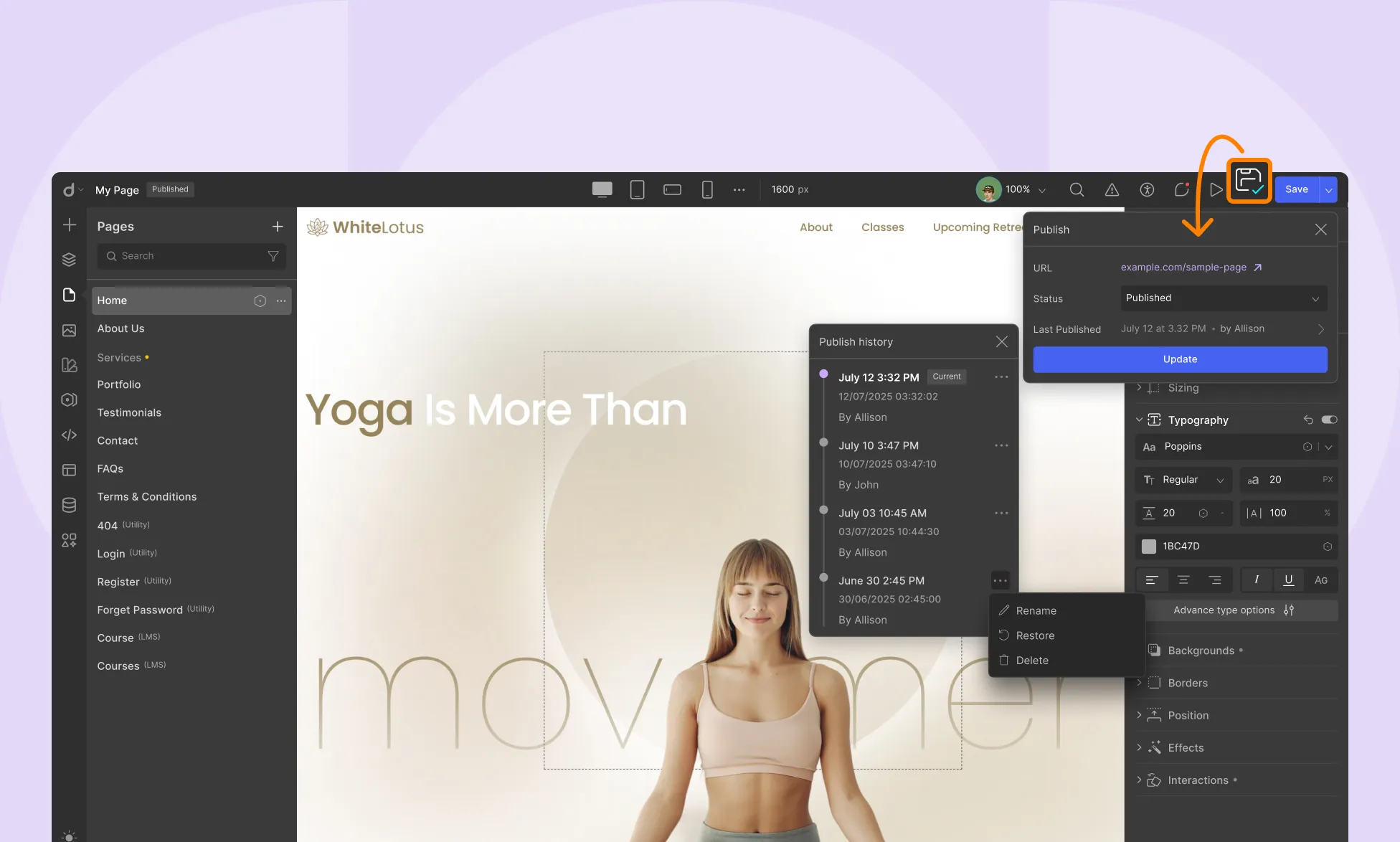
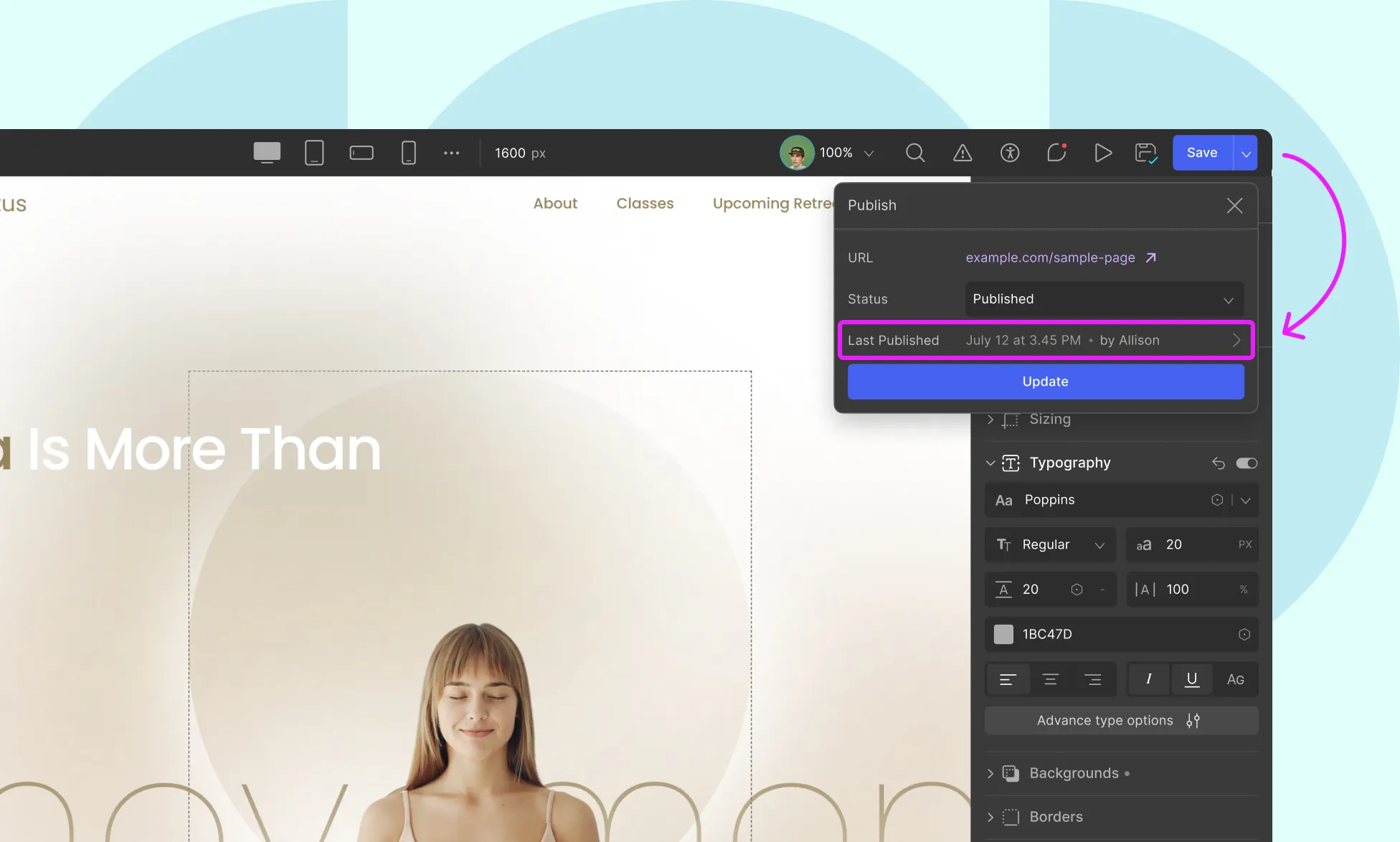
Click the Publish button (top-right corner).
Select Last Published.
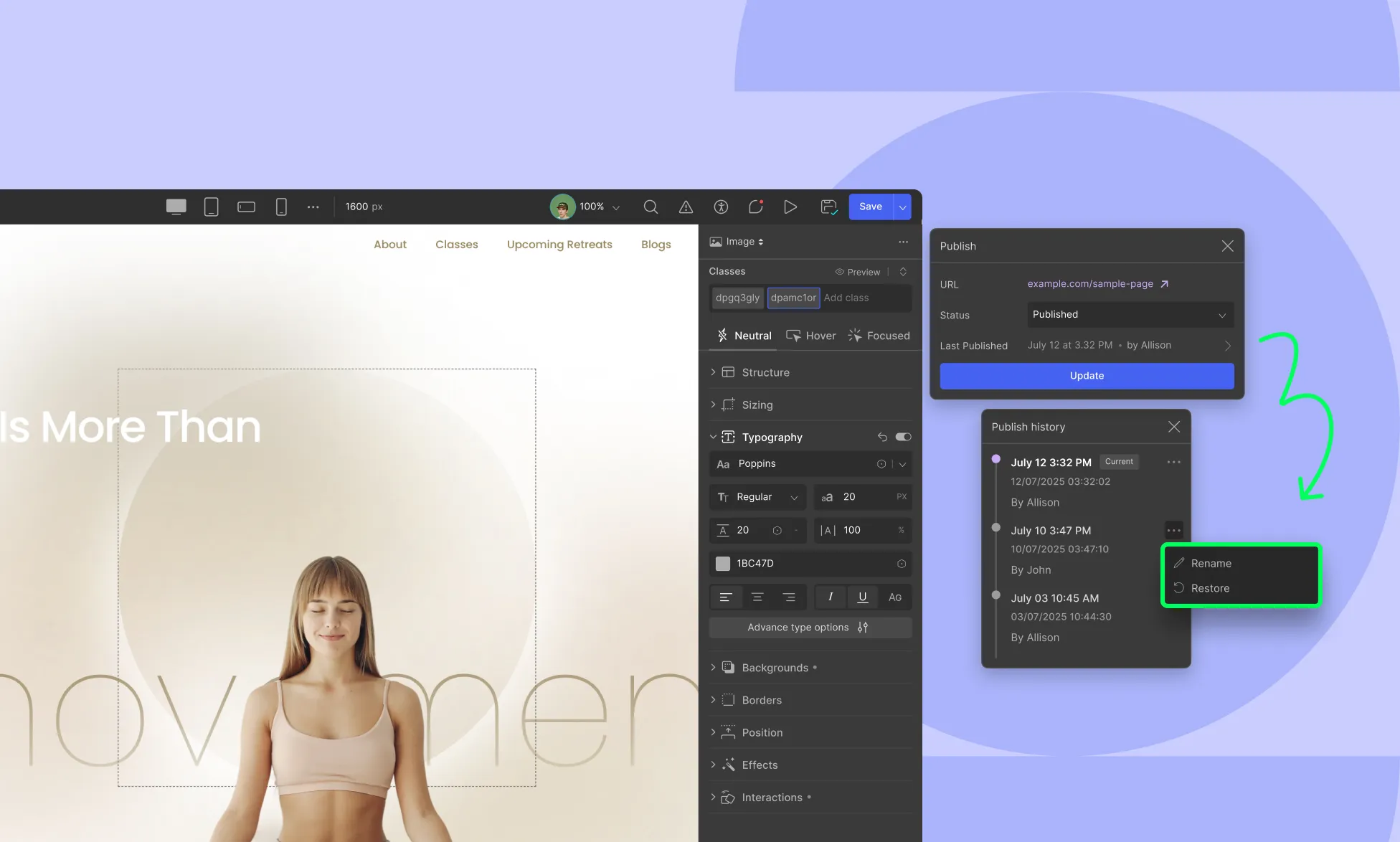
The Publish History panel will appear, showing:
Date and time of each publish
Author name
Options to Rename, Restore, or Delete any version
How Versioning Works
As you design, Droip autosaves your work in the current working version.
When you’re ready to push your updates live, just hit Update, and that version becomes your published one.
Any changes you make after clicking Update (i.e, publishing the page) are automatically tracked in a brand-new version. So, each time you make edits post-update:
A new version is created and saved
The previous version remains safely stored
This means you can freely make edits, preview changes, and go back in time if needed, without putting your live page at risk.
Restore a Previous Version
To revert a page to an earlier version:
Open the Publish History panel.
Hover over the version you want to restore.
Click the More (...) icon.
Select Restore.
The editor will restore the page as it was at that point in time in a new version.
Delete Old Versions
To clean up outdated versions:
Open Publish History
Hover over the version you want to remove
Click the More (...) icon
Select Delete
💡 Note: You cannot delete the current working version or the one that’s currently published.
Things to Keep in Mind
Only Published Changes Create Versions: A new version is created only when you click Update. Autosaves help preserve your progress, but they don’t appear in version history.
You Can Preview Old Versions Without Restoring: Use the Play button next to any version in the Publish History panel to view how the page looked at that time.
Restoring Doesn’t Overwrite Your Current Work: When you restore an older version, Droip creates a new working copy. Your previously published and working versions remain intact.
Full Page Restores Only: Versions represent the full state of a page at publish. You can’t restore just a section or specific element from a version.
Keep Your History Tidy: While there’s no hard limit on stored versions, regularly deleting outdated ones helps maintain clarity, especially on heavily edited pages.
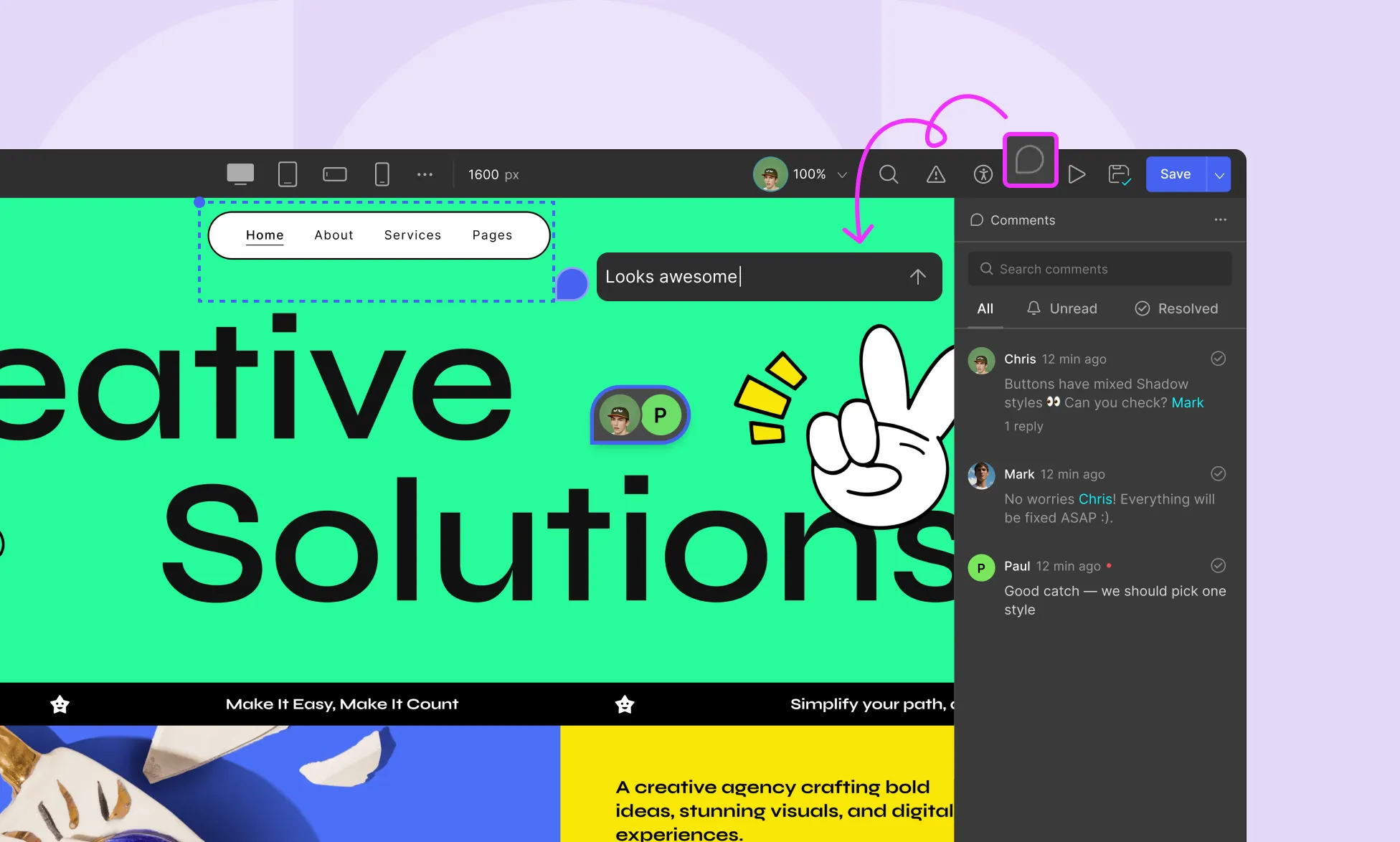
Droip lets you leave comments directly on the canvas, enabling real-time feedback and smoother collaboration between designers, developers, clients, and teams, all without ever leaving the editor.
Whether you’re reviewing a page, requesting changes, or explaining a design choice, Droip’s comment system keeps conversations contextual and actionable.
Overview
The Comment feature allows users to:
Leave comments anywhere on your layout on the canvas.
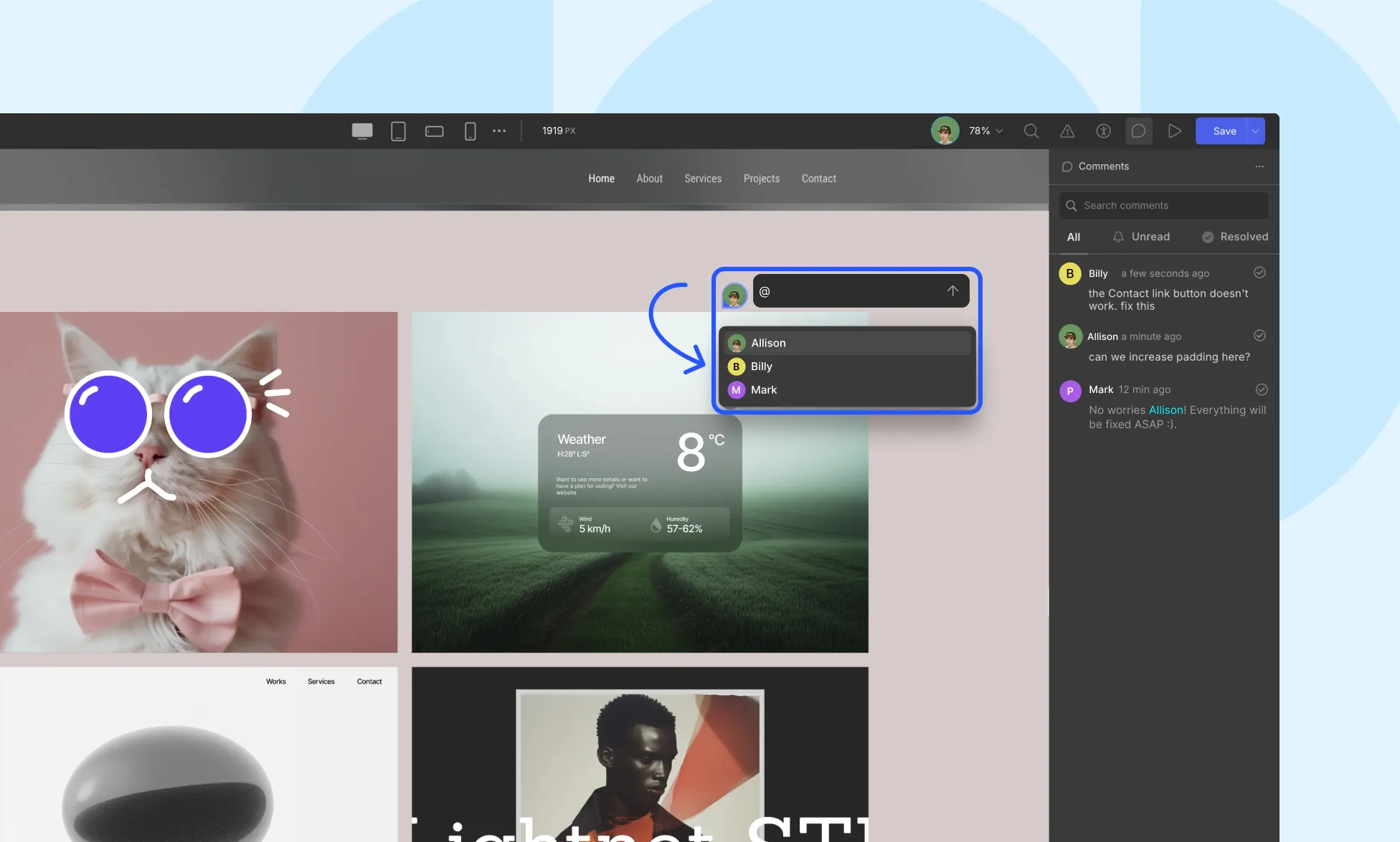
Tag collaborators with @mentions
Keep track of open, unread, and resolved comments
Centralize all feedback into a single, organized panel
Think of it as collaborative feedback built right into your design workflow.
Permissions
Users with Content-Only access can leave comments directly on the canvas, but won’t see the full Comments panel.
Users with Full Access can view, reply to, and manage all comments.
To open the Comment Panel, click the Comment icon (💬) on the top toolbar. This will enable the comment mode and open a side panel where you can:
See all comments
Search through feedback
Filter by: All, Unread, or Resolved
💡 Note: Comments are tied to individual pages, so feedback stays focused and organized.
How to Add a Comment
Enable comment mode using the comment icon.
Click anywhere on the page (not directly on the element, but on the layout).
A floating comment box will appear where you clicked.
Type your feedback.
Optionally @mention a teammate (if multi-user access is enabled)
Click the Upward Arrow icon to submit the comment
💡 Note: Comment markers are shown as floating pins on the canvas so collaborators know where the comment is anchored.
Collaborate With Your Team
You can @mention collaborators inside a comment to direct feedback to them. All users with appropriate permissions can view, reply to, and resolve comments.
Managing Comments
Reply: Start a thread beneath any existing comment
Resolve: Mark comments as completed or addressed
Mark as Unread/Delete: Click on a comment on the canvas and click the More (…) menu
Best Practices
Use clear and actionable language when leaving feedback e.g., “Let’s increase the padding on this section by 20px for better spacing”
Group comments by section or component to keep discussions organized
Resolve comments once completed to maintain a clean workspace
Use @mentions for accountability and faster collaboration
Commenting on staging versions during page revisions
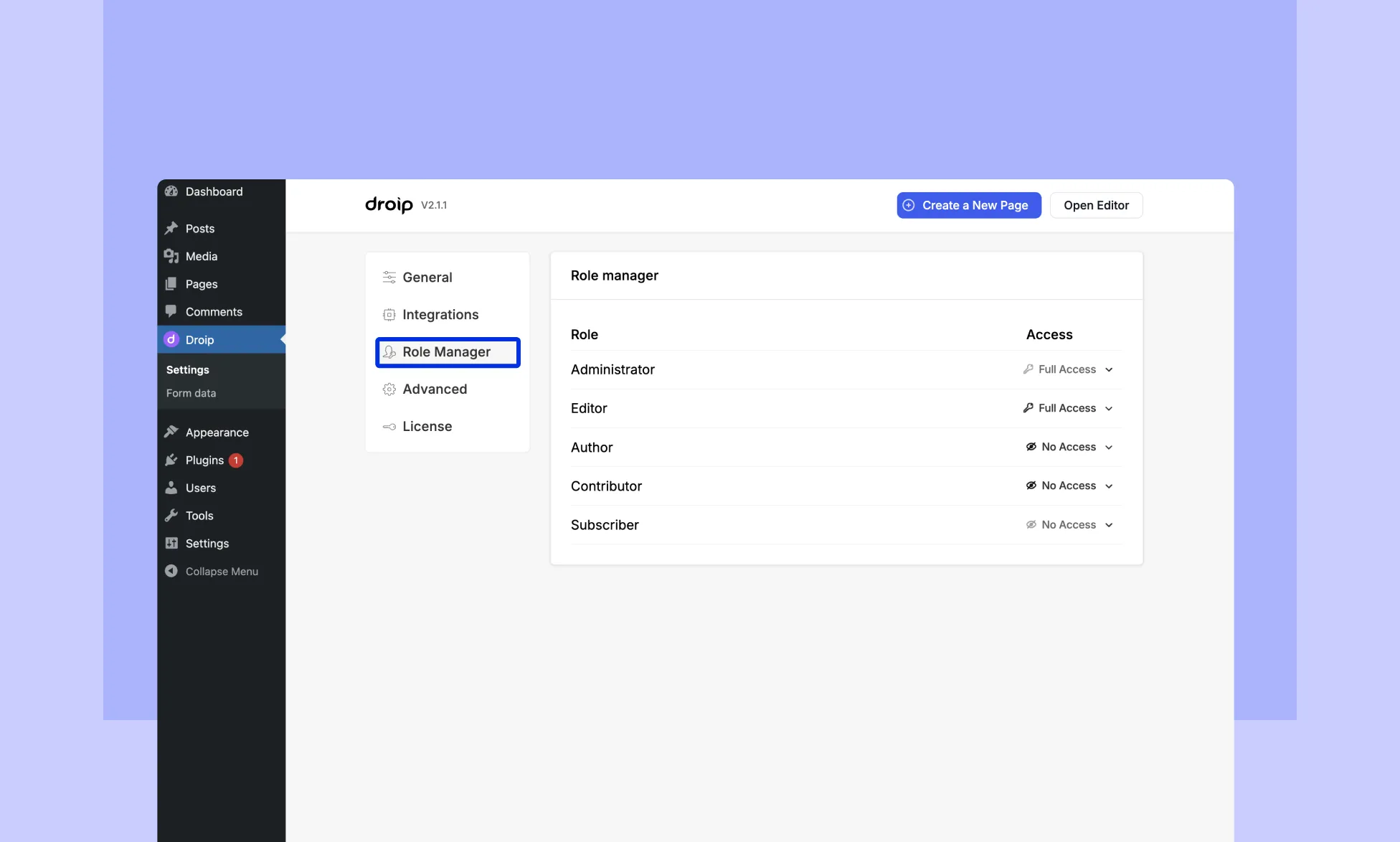
In Droip, you can manage user roles and set different access levels for each role.
Here is a brief overview of the different roles and access levels:
Administrator: This is the highest level of access and allows users to manage all aspects of the website, including adding and deleting users, installing and configuring plugins and themes, and creating and editing content.
Author: This role allows users to create and edit their own content, but they cannot publish it without approval from a higher-level user. But you can manually set their access levels.
Contributor: This role allows users to create and edit their own content, but they cannot publish it without approval from a higher-level user.
Editor: This role allows users to create and edit content, as well as publish content created by other users.
Subscriber: This role is the lowest level of access and only allows users to view content on the website.
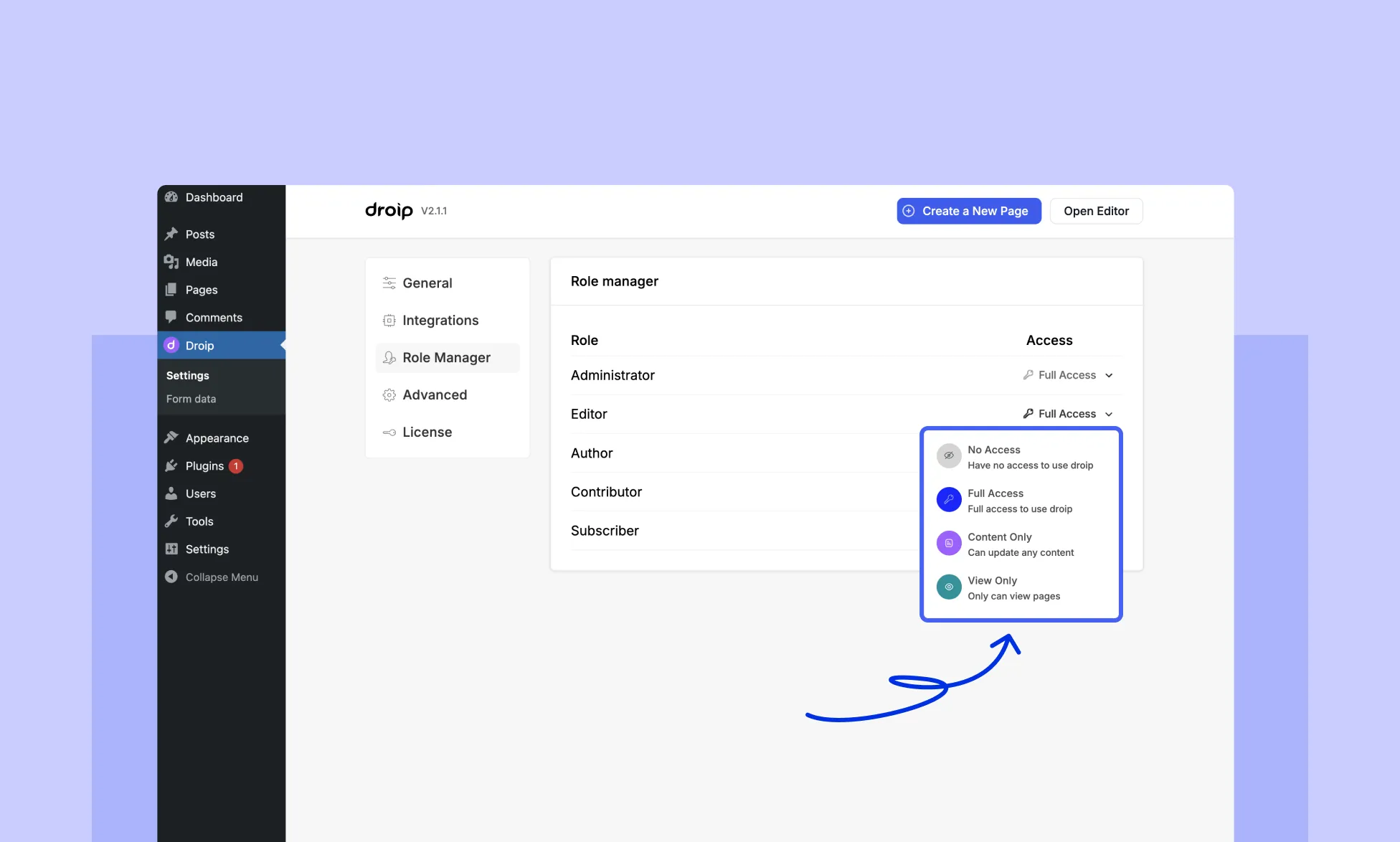
As for the different access levels, they are:
No Access: Users with this level of access have no access to use Droip or its content.
Full Access: Users with this level of access have complete access to all aspects of the Droip plugin, including content.
Content Only: Users with this level of access can only access and edit the content on the site.
View Only: Users with this level of access can only view the Droip pages, but they cannot edit them.
Our website uses cookies to improve your browsing experience on our website. By continuing to use this website, you
agree to
their use. For details, please check our Privacy Policy.
Get started for free!
Start 90 days free trial!
Get Droip
Experience the power of Droip. Create stunning, responsive sites with pure creative freedom.